Documentation/Nightly/SlicerApplication/ExtensionsManager
|
For the latest Slicer documentation, visit the read-the-docs. |
Contents
3D Slicer now supports plug-ins which we call extensions. Extensions are available from an extension server. This allows end-users to select the extensions useful to them, without having to download the entire extension archive.
Extensions Manager

Prerequisites
ExtensionsManager must be enabled in the Application Settings (menu item "Edit -> Application Settings -> Extensions"). If you changed the setting, Slicer has to be restarted for it to become effective.

Installing an extension
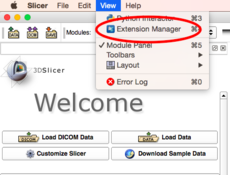
1. Open extensions manager
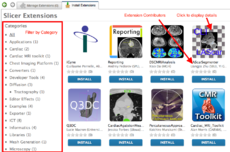
2. Choose an extension
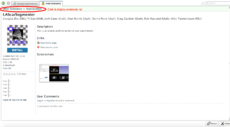
3. Look at extension details

4. Click on "Install"
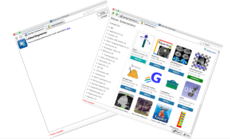
5. Extension is installed
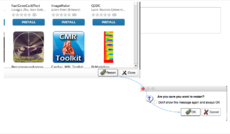
6. Restart Slicer
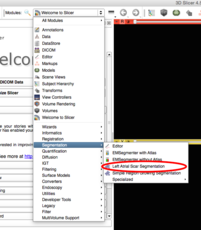
7. Extension is available


Installing an extension without network connection
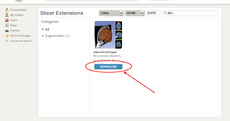
1. Download the extension package (or obtain it in some other way)
2. Open extensions manager
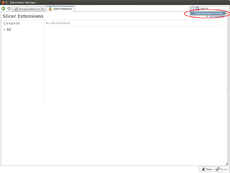
3. Select 'Install from File' from the tools menu
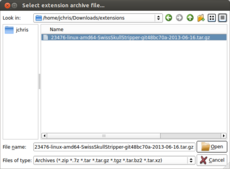
4. Select a previously downloaded or otherwise obtained extension archive

5. Extension is installed
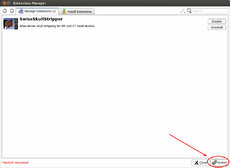
6. Restart Slicer
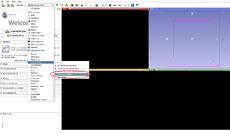
7. Extension is available


Uninstalling an extension
1. Open extensions manager
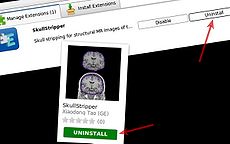
2. Click on "Uninstall"
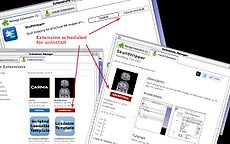
3. Extension is scheduled for uninstall

4. Restart Slicer
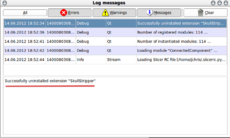
5. Extension has been uninstalled


Disabling an extension
1. Open extensions manager
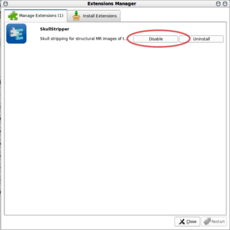
2. Disable extension
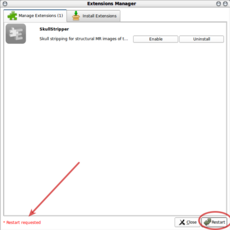
3. Restart Slicer


Incompatible extensions
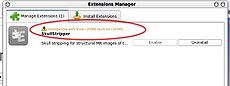
Incompatible extension has been identified
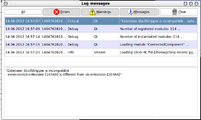
Error log message


Extensions Manager Settings
Extensions settings
|
|

Module settings
|
|

Launcher settings
|
Whereas the module path is used to indicate Slicer where to look to load additional modules, the extension manager also takes care of updating the |


